Frequently asked questions
Answers to common questions about installing and using Offer Times.
There are two ways to open Offer Times if you’re using Google:
From Google Calendar — look for the “Offer times” button in the bottom right of your calendar.
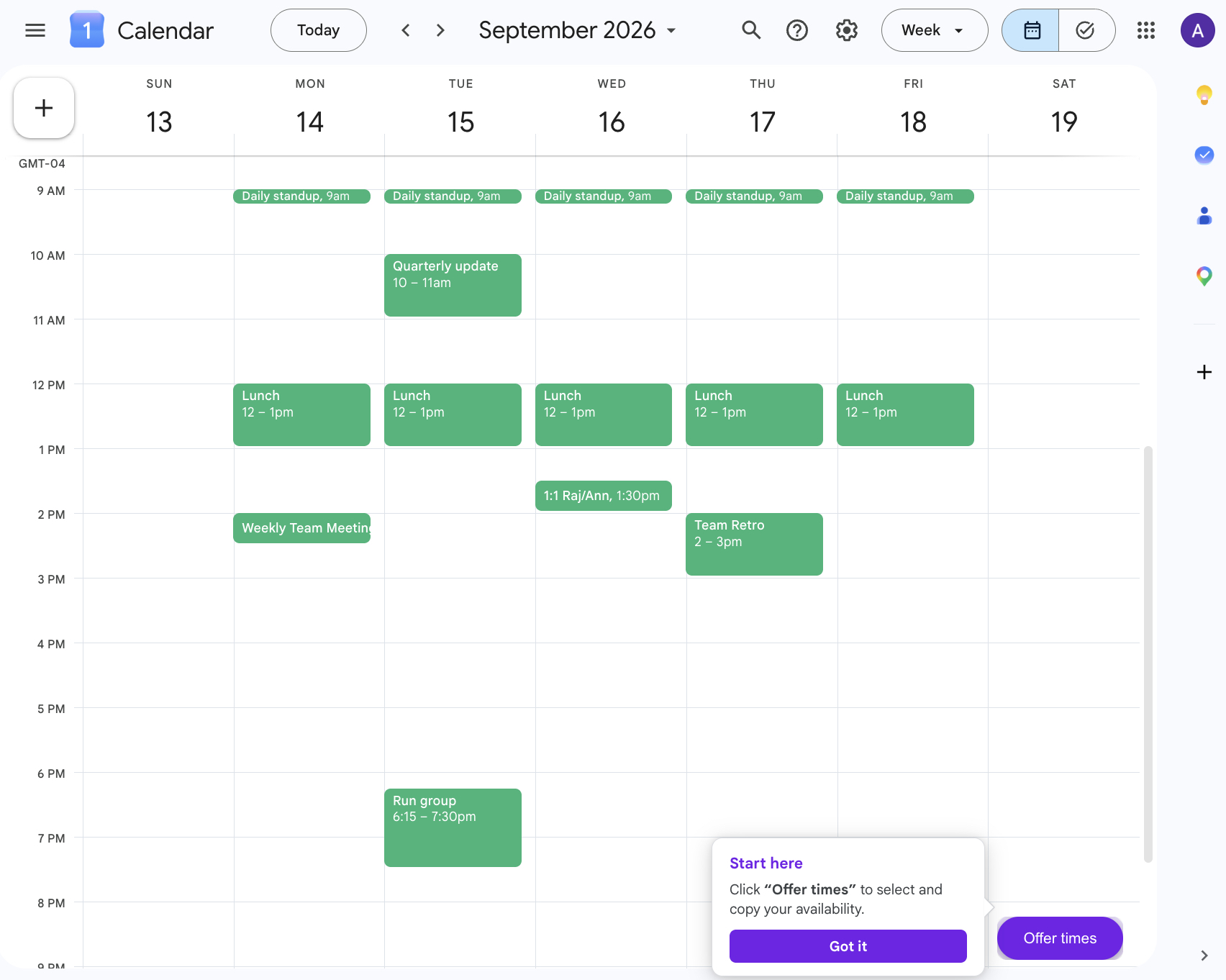
From Gmail — open the Google Calendar side panel in Gmail, then look for the “Offer times” button at the bottom of the panel.
Note: timezone settings and other preferences are managed in Google Calendar directly. If you want to adjust anything, open calendar.google.com for the full experience.
If you don’t see it, try:
- Refreshing the page after installing the extension
- Making sure the extension is enabled at chrome://extensions
- Checking whether your work or school account blocks browser extensions (see below)
How to check: open chrome://policy in a new tab and look for an ExtensionSettings entry listing *://*.google.com (or a runtime_blocked_hosts value covering google.com). If it’s there, your organization is blocking the extension — this isn’t something Offer Times can override.
How to fix it:
- Ask your IT admin to allow Offer Times — they can exempt this one extension without changing the rest of the policy. On a managed device this is the only reliable fix.
- Switching Chrome profiles only helps if the block is tied to your work Google account. If chrome://policy shows the source as Platform or Machine (rather than Cloud/account), the policy applies to every profile on that computer — you’d need a separate, personal/unmanaged computer instead.
Sometimes Google sign-in doesn’t connect back to the Offer Times extension because of browser quirks like multiple Chrome profiles. The fastest fix is to sign in with your email instead:
- Open Offer Times on your calendar and click Sign in.
- Click “Use your email instead.”
- Enter your email and press Send code. We’ll email you a 6-digit code from noreply@offer-times.com. Check spam if it doesn’t arrive within a minute.
- Type the code in and press “Verify”.
If that doesn’t work either, contact us and a real person will help you directly.
Yes — Offer Times has a free tier that includes 4 copies or shares each month, with a monthly reset. Beyond that, Unlimited is $5/month.
Yes — Offer Times works on Outlook on the Web. The Copy feature is fully supported. Note that the Hold feature currently creates events in Google Calendar only.
Offer Times is a Chrome extension, so it does not work in the Outlook desktop app. A proper desktop add-in is something that may be considered in the future.
Yes, that’s expected — and it only happens the first time you use Hold. When you enable Hold and click Confirm, Offer Times needs permission to create placeholder events in your Google Calendar. A banner in the panel will let you know a sign-in window is about to open.
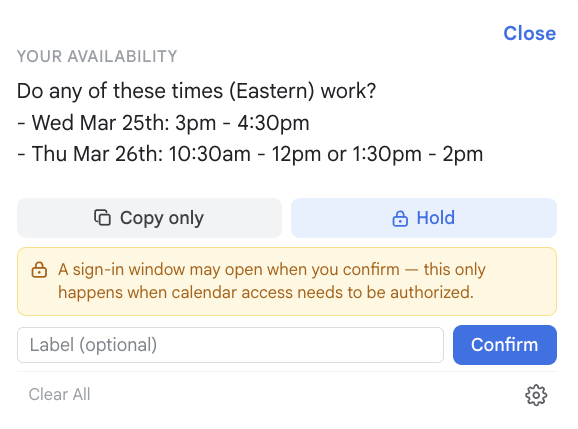
Clicking Confirm opens a Google authorization screen asking for calendar access. This is the standard Google permission flow — Offer Times only uses it to create hold events on your own calendar.
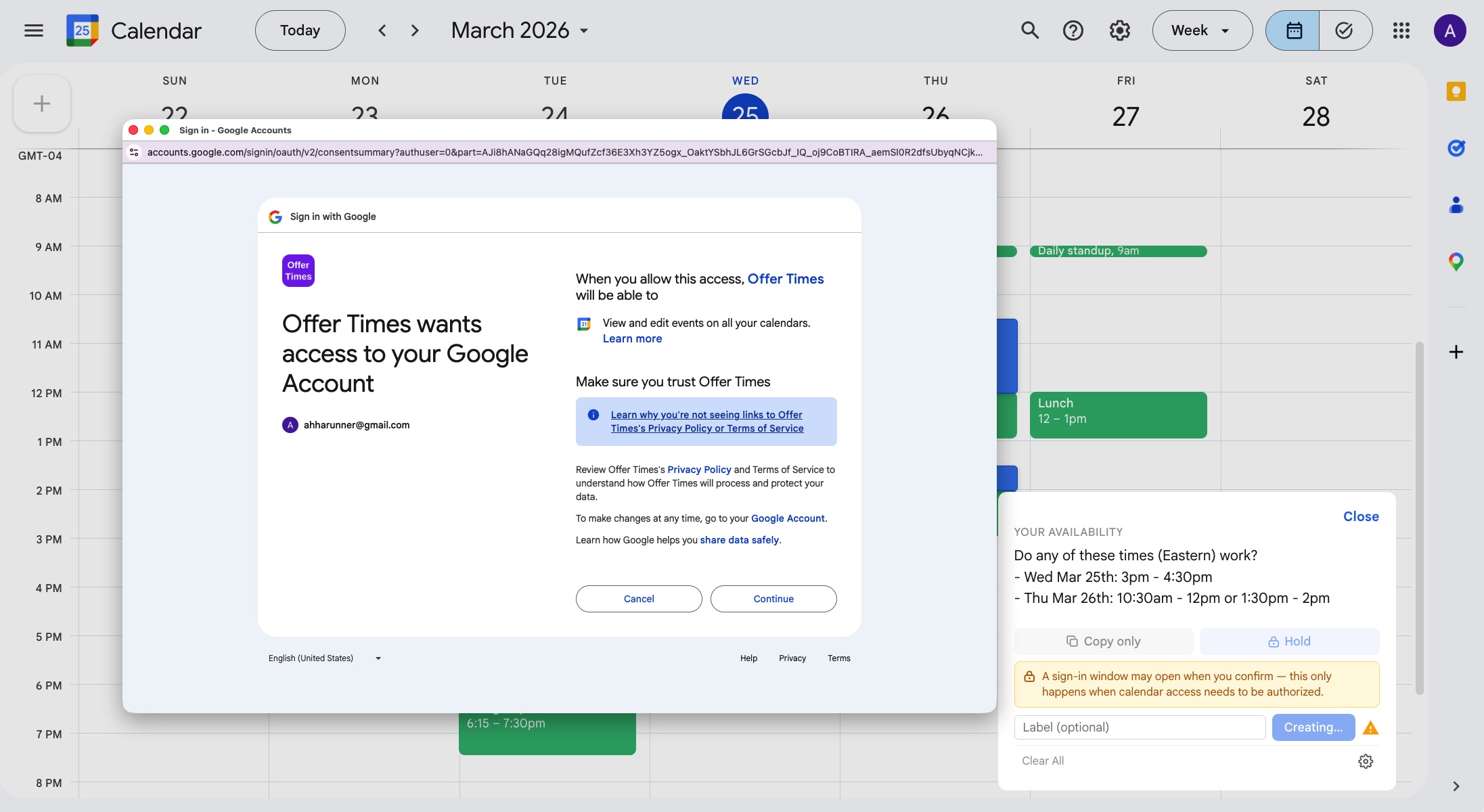
Offer Times only ever creates hold events on your own calendar — it does not read, modify, or delete any existing events, and it never accesses anyone else’s calendar data.
Yes — Offer Times is well suited for executive assistants who schedule on behalf of others. You can open any calendar in Google Calendar or Outlook on the Web, select available time slots, and instantly copy a clean availability message to paste into any email or message. There's no scheduling link to manage and no back-and-forth to coordinate.
It's particularly useful when you want the outreach to feel personal and considered rather than automated — which matters when scheduling on behalf of a senior executive or managing relationships with high-value contacts.
Absolutely. Offer Times is popular with people in roles where relationships matter and a scheduling link feels too transactional — venture capital partners doing founder meetings, recruiters proposing interview slots, real estate brokers coordinating showings, financial advisors scheduling client reviews, and consultants managing prospect calls.
The core idea is simple: you copy your available times as plain text and paste them wherever you're already writing — email, LinkedIn, WhatsApp, Slack, or SMS. It fits naturally into how relationship-driven professionals already communicate, without adding a new tool or workflow to learn.